Blog to Book Project — Pen Names

A pen name, also known as a literary double, is a name used by an author which may be a variant of his or her actual name or may in no way resemble it.

This pseudonym is used sometimes to disguise the writer’s gender or to distance the author from other works. So, for instance, Mary Berton wrote several explicit romances. If Mary wanted to write finance textbooks, she might list her name as M. Berton on those. Both are her name, but the use of an initial instead of Mary not only disguises the gender of the writer but distances the two genre writings.

Here are some authors who have used pen names:

  • Mark Twain’s real name was Samuel Langhorne Clemens.
  • Theodor Seuss Geisel was Dr. Seuss.
  • George Orwell was actually Eric Arthur Blair.
  • Stan Lee was really Stanley Martin Lieber.
  • Steven King also wrote under the name Richard Bachman.
  • Joanne Rowling has used the pen names, J.K. Rowling and Robert Galbraith.
  • Agatha Mary Clarissa Christie wrote mysteries with the name Agatha Christie and romance novels as Mary Westmacott.
  • George Sand was born Amantine Lucile Aurore Dupin.
  • Mary Ann Evans published her works as George Eliot.

Should you use a nom de plume instead of your given name? Well, it depends.

You might choose a pen name if you would like some personal privacy. I’ve opted to write under the name C.E. Flores, which is my actual name but with initials instead of using my first and middle names. I never used my first name on my blog, only my last, for the same reason.

If there are several other authors with your name, you might consider using a pen name or a variant of your own to avoid confusion. For example, you could use your middle name rather than your first name, or add your middle initial to your name. So Robert Carl Brown could write as Carl Brown or Robert C. Brown to distinguish him from other authors also named Robert Brown.

When considering a pen name, do not use the same name as someone famous. Writing as Stephen King might initially increase your sales, but it could cause a whole lot of trouble down the line. Therefore, look for something unique.

You may be tempted to be creative with your Author Biography when writing. After all, it’s not really you. However, don’t give yourself credentials or experiences that are not true. Things like that have a way of being found out and it will damage your credibility as an author long after you’ve forgotten about it. Stick to as close to the truth as possible.

Assignment: Decide on the name you will write as.

Blog to Book Project — Lending on Amazon

Lending for Kindle

Any digital book that has been purchased on Amazon.com can be lent to another person for 14 days. All Kindle Direct Publishing titles are enrolled by default. 

If you have chosen the 35% royalty option for your book, you’ll have the option to opt out of this service. If your book is enrolled in the 70% royalty payout, then you can not opt out. 

Loans are not considered purchases, so you do not receive any royalties for titles someone has lent another person. 

Kindle Owners’ Lending Library

Readers who have an Amazon Prime membership can also borrow books through the Kindle Owners’ Lending Library (KOLL). Books that are enrolled in KOLL have an Amazon Prime badge on the detail page. 

Qualifying readers can choose one title per month to read for free. That book is available to the borrower for as long as they like while they are enrolled in Amazon Prime. 

KDP Select titles are automatically included in KOLL. You receive royalties based on the number of pages a customer reads for the first time. If the borrower rereads your book, you will not receive any royalties for the second reading. 

You can see your royalties for KOLL pages read under the reports section of your KDP page along with the Kindle Unlimited information.


Assignment: Check to make sure your book is enrolled in the Lending Library. Also, find where you can keep track of your KOLL royalties from your KDP page.

Blog to Book Project — Kindle Previewer

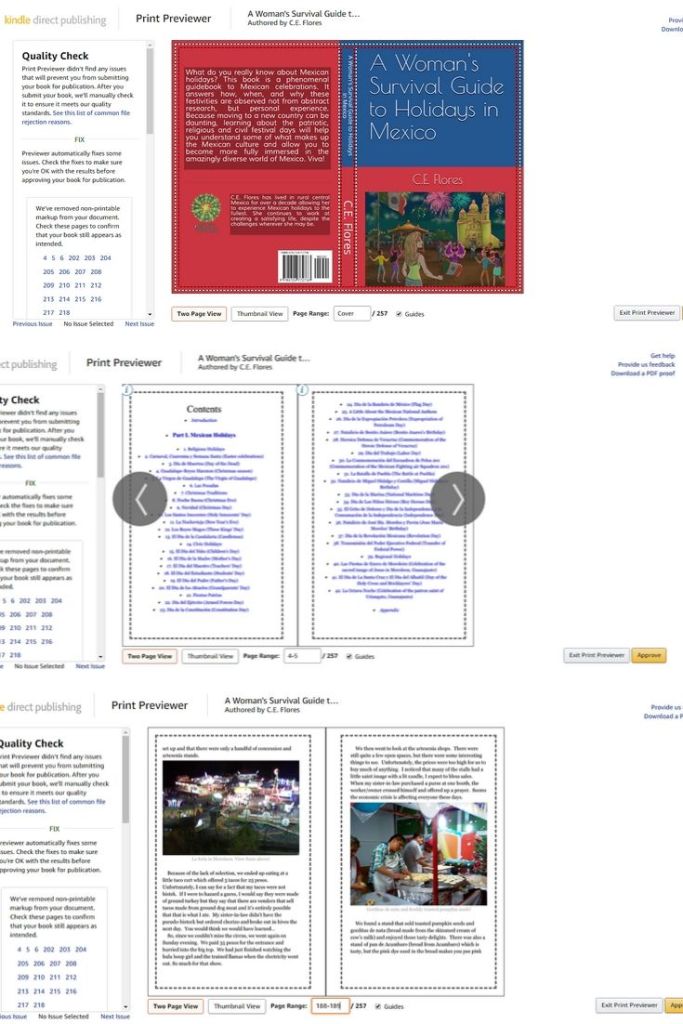
Before you publish your print book on Amazon, you must check it via Kindle Previewer. This section is under the Paperback (or eBook) Content tab after the Book Cover section.

Kindle will let you know if you have formatting errors and you’ll need to fix them before it can be published. Common problems are bleed issues (text or image goes beyond the margin) or low resolution images. If you have a hyperlink, it won’t appear in the print book.

Check every single page including the cover before approving. You can also download a PDF version if that works better for you. If there is something that you need to fix, do so, then upload the corrected manuscript and check it again. You need to approve the print preview before moving on to the next step. 

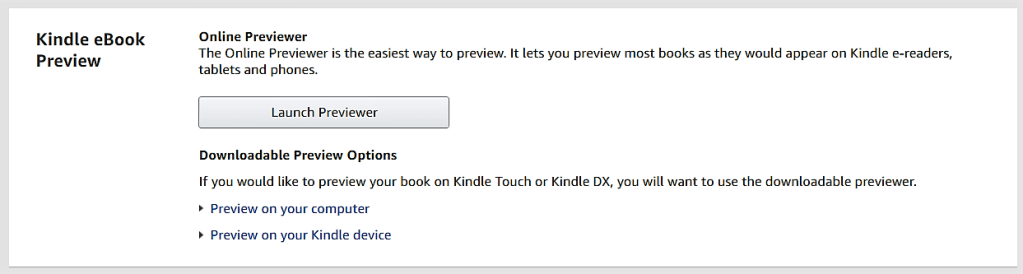
The Kindle Previewer for ebooks can be downloaded if you have Microsoft Windows 7 or OSX v10.9 or later and a 1.2 GHz processor, minimum 4 GB RAM, and a screen resolution of 1024 X 768. Otherwise, you can use the online version. 

Ebook checking is optional, but definitely something you should do. Since ebooks have a more fluid layout, you may not see exactly what a reader sees in the Previewer but it will give you a good idea.

You can preview by device type, orientation and font size just like you did with Cover Creator. You can look at specific elements like the tables, images, etc with the downloaded version. You can, and should, take the time to look over your book from end to end.

Remember the adage, you never get a second chance to make a first impression? Well, having your book formatted correctly is what will make the first impression to your reader. So take advantage of this option to look things over just one more time before publication. 

Assignment: Use Kindle Previewer to check your ebook and print book. Make any changes, unload the corrected manuscript, and check it again.

Blog to Book Project — Kindle Instant Previews

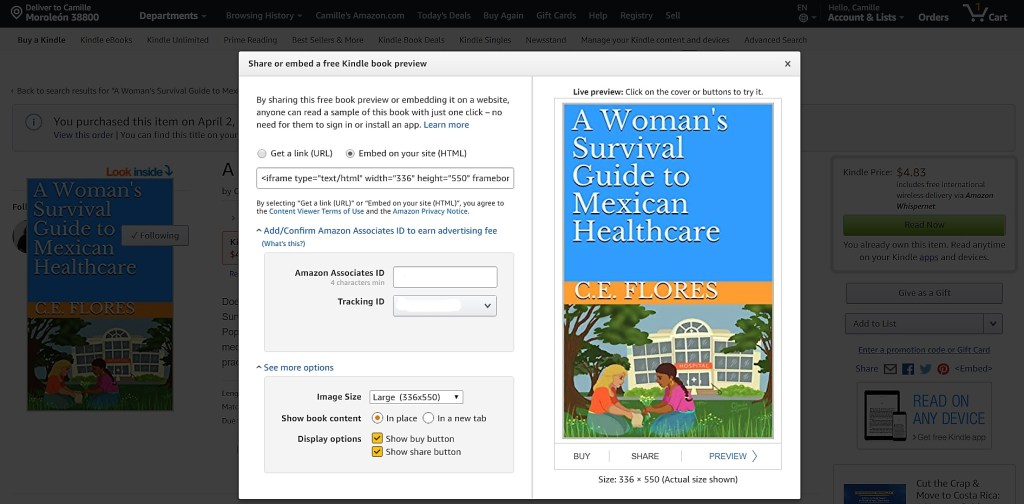
Amazon has a fabulous preview option that you should take advantage of. As long as you are an Amazon Associate, each book detail page will give you a way to either embed or share a link to a preview of your book. 

Go to your book’s detail page on Amazon. Over on the right side, there are some social media icons that you can use to share the page. After the last symbol, you’ll see <Embed>. Click on that. 

A pop-up window will open. Here your Amazon Associate ID and Tracking number will appear. You’ll want to double check those because any book purchased through the preview option earns you a commission. You use either the link or click on the embed option.

The embed option gives you code that you can insert in the text (HTML) section of your book’s landing page on your website. You did set up a website and create a landing page right?

For some reason you aren’t able to embed the code, there is still a way to add the preview link to the landing page. Upload the cover of your book and under Display Settings choose Link to: Custom URL. Here you can add the LINK (not the embed code) to the image. Make sure you caption the image letting people know that it is clickable and will provide a preview of the book.

The preview can be accessed through any Kindle device or anyone with the Kindle reading app on any device.

At the end of the sample, readers are encouraged to purchase the book on Amazon. There’s a good chance that if they made it that far, they’ll be interested in buying!

Assignment: Embed the preview on your book’s landing page. Share the preview link wherever you want.
Blog to Book Project — Goodreads

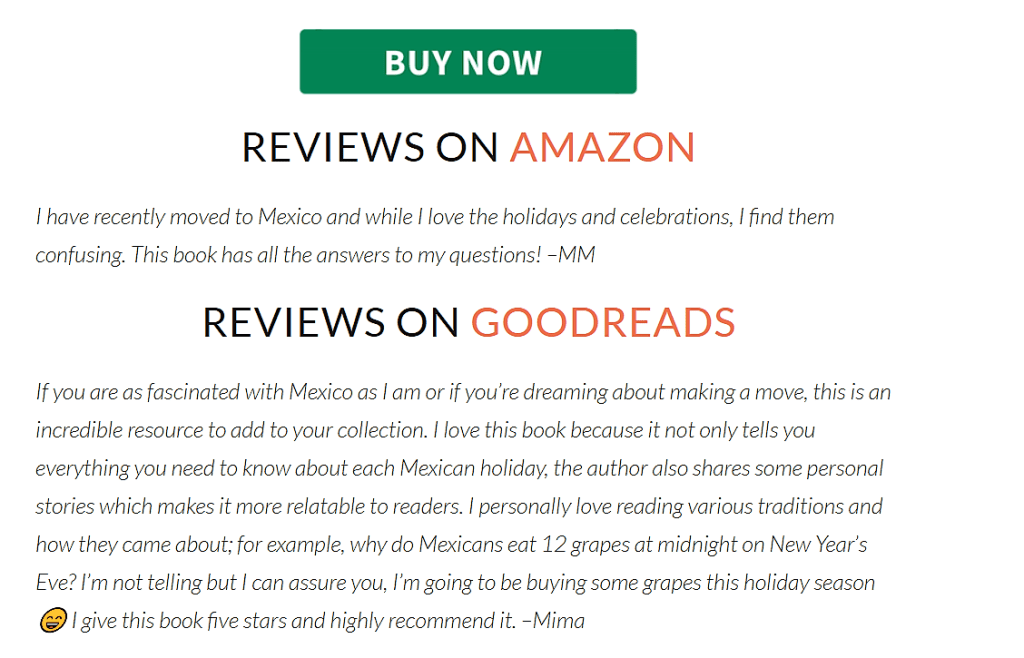
Goodreads is another great place to get book reviews. Once your book is available on Amazon, you can create a Goodreads Author page and add it to the millions of books on that site. Amazon owns Goodreads, so book reviews on any of Amazon’s international sites will appear on Goodreads too. 

Another nice option is the Goodreads widget you can add to your author blog or website. You can also add your blog feed to your Goodreads Author page for even more exposure. You can interact with readers through question and answer forum. You can run giveaways on your books. You can even advertise your book on Goodreads. Woot! 

To set up your Goodreads Author page you first must apply for the Author Program. Sign in to Goodreads or create an account if you don’t already have one.

Then search for your book using the ISBN, ASIN or title. Click on the book and then on the author name.

At the bottom of your author profile page you’ll see “Is this you? Let us know!” to complete and submit an application for the Author program. 

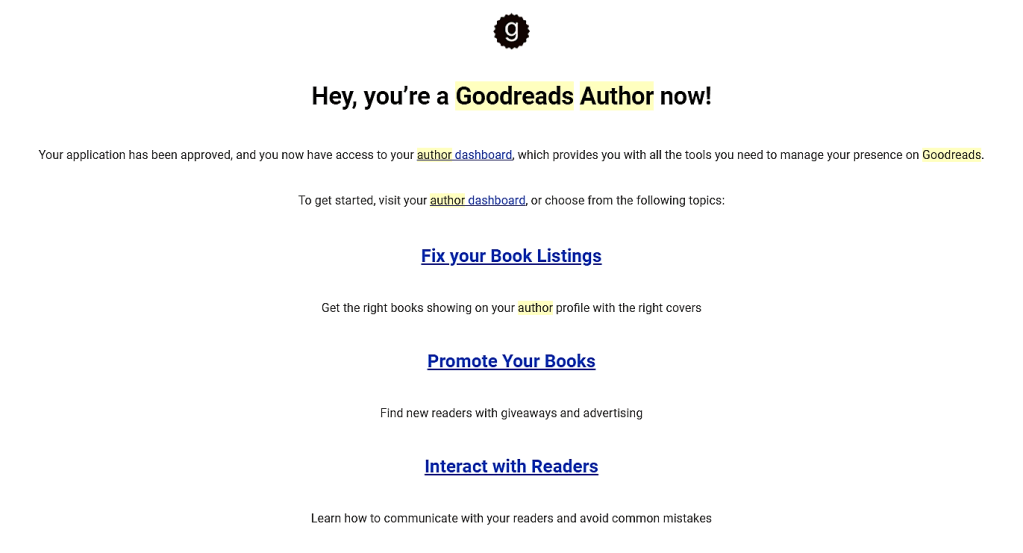
Once you’re approved, you’ll get an email welcoming you to the program. 

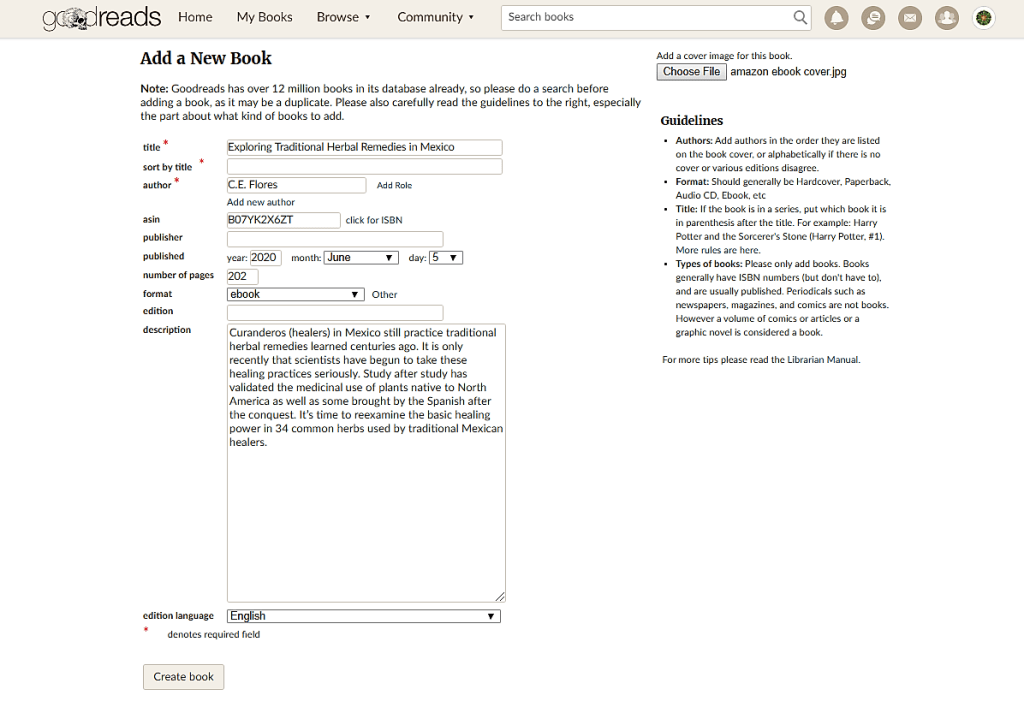
Next you’ll want to get your book listed on your author dashboard. Add your book using ASIN, ISBN or title to search for it.
Fill out the missing information which you can find on your book’s detail page on Amazon. Add a cover image. Submit.

Goodreads will verify it and voila, you have a book listing! Be sure to add each edition, paperback and ebook, so that readers of both types will see your book on Goodreads and leave a review. 

Experiment with the different tools that Goodreads offers. Set up a giveaway. Answer some reader questions. Add some friends. Join some groups. Participate in discussions. Add your reading lists. Write some reviews. Have fun!

Assignment: Set up your Goodreads Author Page. 

Blog to Book Project — Free Book Promotion

Make sure to scroll down to see which eBook is FREE for you to download from Amazon today!

A great way to get reviews is to offer your book free every so often. When your title is enrolled in KDP Select, you can give your book away for up to 5 days every 90-day term. If you have already done a Kindle Countdown Deal during a period of enrollment, your book won’t be eligible for a Free Book Promotion.

To set up a free book promotion click on the Promote and Advertise button next to the title on your KDP Bookshelf.

On the Promote your book on Amazon page, make sure the Free Book Promotion is selected and click on the yellow Create a new Free Book Promotion button.

Choose a start and end date. You can choose all five days at once, or run multiple free book promotions during the 90-day period. Once the dates are entered, select the yellow Save Changes button. 

You can edit or delete a free promotion at any time, including during an ongoing promotional period. While the book is free, it won’t be included in the Kindle Owners’ Lending Library (KOLL). You also don’t receive any royalties for any free books that are purchased during the promotional period. 

While your book is free, it is eligible for ranking on the Top 100 Free page in the Kindle Store. Once the promotional period ends, it reverts back to ranking on the Top 100 Paid page.  

Don’t forget to blast your social media networks with the news! Everybody loves FREE books!

Assignment: Set up a Free Book Promotion.

I’ve set up a free book promotion for my latest that you can pick up for FREE until April 8, 2020. A Woman’s Survival Guide to Disasters in Rural Mexico eBook version is FREE–so go on and pick it up!

Blog to Book Project — Kindle eBook Pre-Order

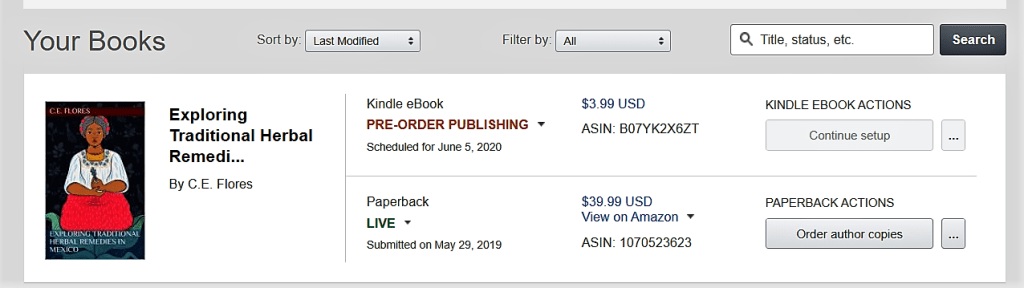
In order to start some hype about your ebook, you can set it up as a pre-order book after you have published your print version. Pre-orders count towards sales ranking even before your book is released.

Pre-orders are not available at Amazon.in yet, but you can set your book up for pre-order at any other Amazon Kindle Store. Customers can order it anytime up to the release day. Once it’s released, they will receive their copy.  

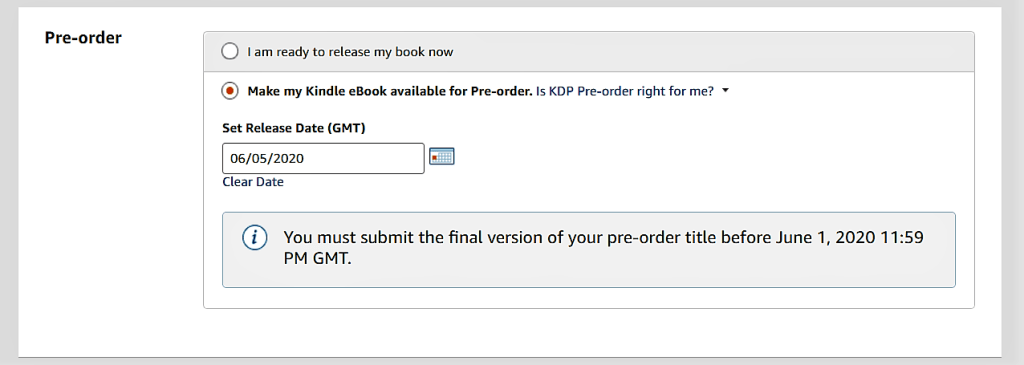
To create a pre-order, set it up as you would any other KDP ebook. When you get to the pre-order section, choose “Make my Kindle eBook available for Pre-order.” and choose a release date. You’ll get a message telling you that you need to upload the final draft a few days before that release date. Save and continue.

Under the Manuscript heading, you are given the option to upload your manuscript now or wait until a few days before the release date to upload it.

Continue through the setup process. On the final page, you’ll see the yellow button “Submit for Pre-Order” instead of the normal publish option.

Once you submit your manuscript, the detail on your bookshelf for that book will say “Pre-Order in Review.”  While Amazon is setting up the detail page for your pre-order book, the notification will say “Pre-Order Publishing.”

Once it is live, you’ll receive an email where you can check out the detail page on Amazon for this title. 

If you haven’t submitted a manuscript, there will be a timer on the setup page that lets you know how long you have to submit your file so that it will be delivered to customers on time. If you don’t upload a manuscript before that date, the pre-order will be canceled and you can’t set up any other pre-orders for the period of one year. You won’t be able to make any changes to the manuscript after the submission deadline until after the release date. 

You can keep track of pre-orders on your reports page. The report will include pre-ordered ebooks, cancellations and net pre-order units. The sales information will not appear in the royalty reports until after the book is delivered to customers. 

You can change the release date if you need to. If you move it up, you must submit the republish your manuscript. Customers who have already pre-ordered your book will get the book earlier.

You can delay the book’s release once up to 30 days before the submission deadline. If you delay the book a second time, you won’t be able to create another pre-order for a year. If your book is delayed, customers who have already ordered your book will receive an email to that effect. 

You can also cancel a pre-order by unpublishing it from the bookshelf on KDP. If you cancel though, you won’t be able to set up another pre-order for one year. 

Assignment: Get your ebook ready for pre-order.

Blog to Book Project — Kindle Countdown Deals

The Kindle Countdown Deal is available to books enrolled in KDP Select. It is a sale on your book that you can run on Amazon.com and Amazon.co.uk.  When your book is part of a countdown deal, potential buyers can see the regular price and the promotional price on the detail page along with a countdown clock.

You’ll receive your regular royalty rate for each sale during the promotion. Furthermore, your book will be listed on the Kindle Countdown Deal page.

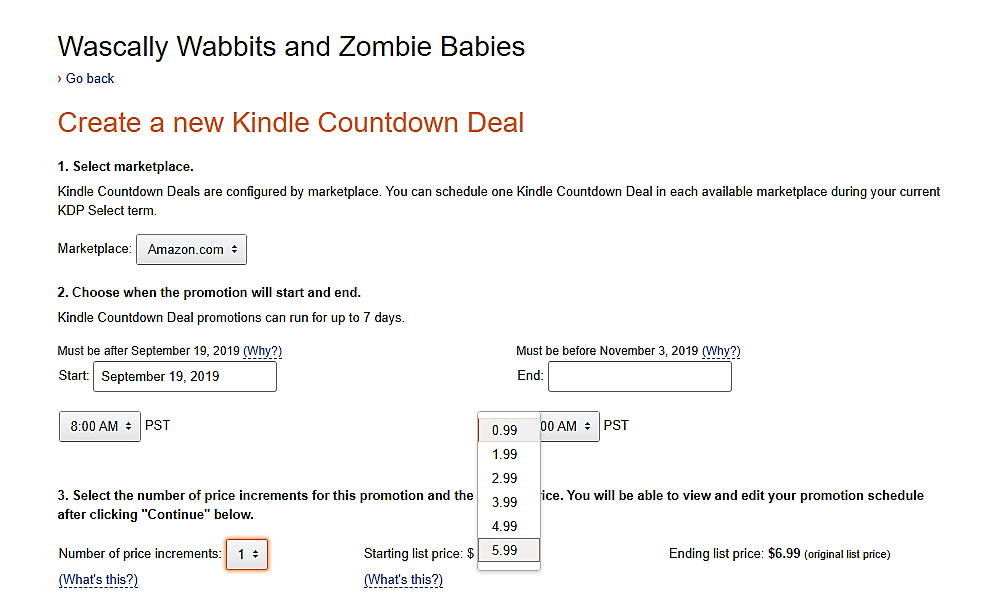
To set up a Kindle Countdown Deal, select the Promote and Advertise button by your book in your KDP Bookshelf. 

That will take you to a page entitled “Promote your book on Amazon.” On this page, make sure the Kindle Countdown Deal option is selected and click on the yellow Create a new Kindle Countdown Deal button. 

On the following page called “Create a new Kindle Countdown Deal” first choose whether you wish to run your sale on Amazon or Amazon UK. Then choose what 7-day period you want to run the sale. You can choose to run the deal for fewer days, but you only get one countdown deal per each 90-day enrollment period, so you might as well use the maximum number of days. 

Decide how many increments you want the sale price to have, from one to five. Then decide on the starting price of your book from .99 to $1 less than the full price. 

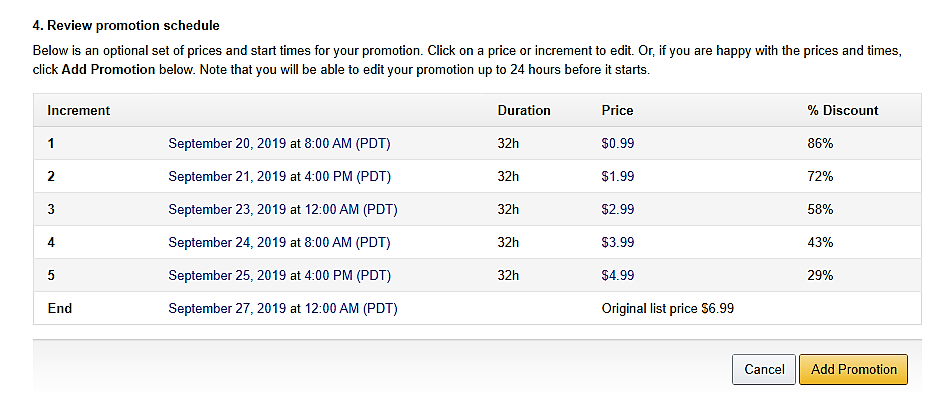
When you continue, you will see the proposed promotional schedule including date, duration of that price point, price and the discount percentage. You can edit as you wish before confirming by selecting the yellow Add Promotion button at the bottom of the page. 

In order to qualify for this sale, the digital price of your book can not have changed 30 days prior to the sale or 14 days after. The book must have been enrolled in KDP select for at least 30 days.

The book can’t have had a free promotion during the same KDP Select term. You can choose either one type of promotion or the other, not both. If your book is not exclusive to KDP Select and Amazon finds out about it, you lose your KDP privileges and any promotions are cancelled. You also can’t cancel the promotion once it has begun. 

Make sure to advertise your Kindle Countdown Deal on all your social media accounts!

Assignment: Set up a Kindle Countdown Deal.

Blog to Book Project — Cover Design

You have an incredible opportunity to convince someone to buy your book if you have the right cover. If it is bland or if it doesn’t accurately represent the contents of your book, then prospective readers will move on. 

If you have the artistic ability, then, by all means, take a crack at designing your own cover. I am not fortunate enough to have that talent, so I ask my artist friend, Clau Guzes, to create images that I can use for my cover using Cover Create at KDP and in my books.

If you don’t have an artistic friend, then you can search for one on a variety of freelance platforms. Upwork, BookDesignTemplates, Reedsy, 99designs, and Fiverr all have oodles of designers in every price range and ability. 

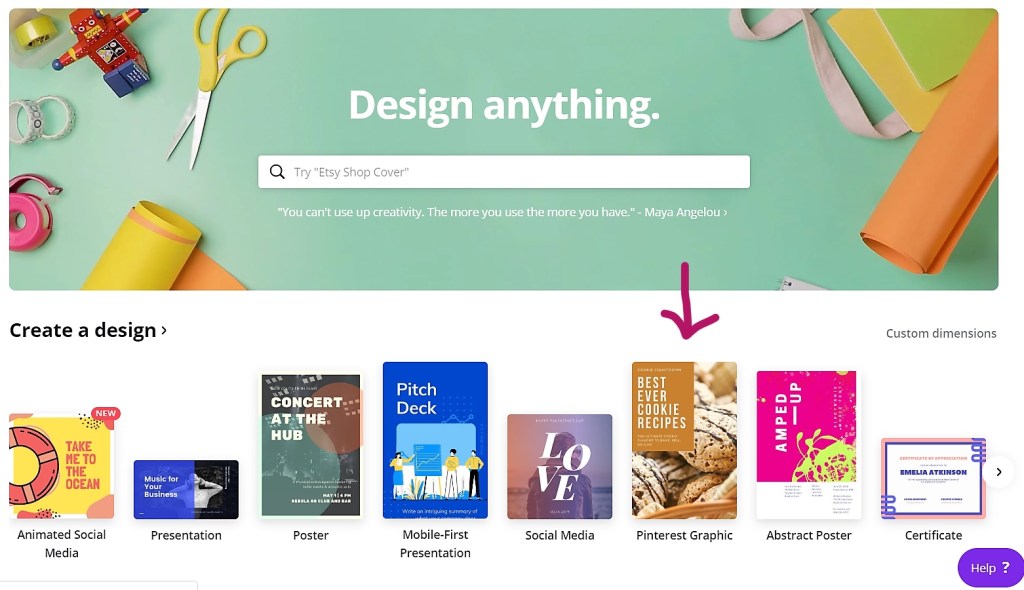
Do-it-yourself options include Canva, Pixlr, DIYBookCovers, and GIMP.

Whichever option you choose, your cover should entice readers to pick up your book and page through it, whether literally or virtually, depending on the format. 

Look at other book covers written by other authors in your niche or genre. Are there similarities in the cover design or image choice? You’ll want to mimic them. 

When you’ve narrowed it down, you could make a poll and ask your readers which they prefer. Polls create an excellent opportunity for you to connect with your fans.

The image and design that you ultimately go with should portray the main idea of your book. Take a look at these cover designs gathered by Reedsy for some cover design inspiration. 

Assignment: Choose or design an image you want to use on your cover.